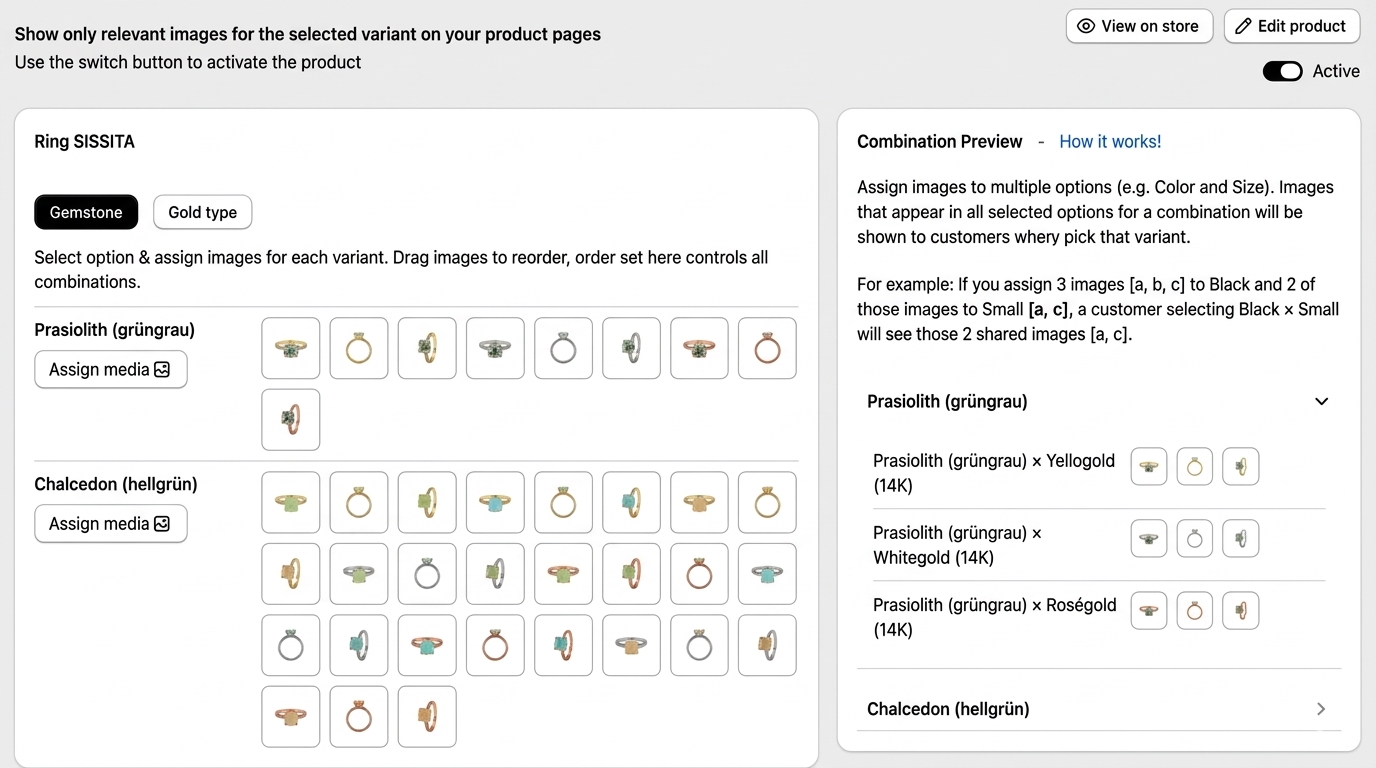
When it comes to improving your online store’s shopping experience, shopify variant multiple images can make a huge difference. Showing different images for each product variant helps customers see exactly what they are buying, increasing confidence and boosting conversions. With apps like Nova Multiple Variant Images, managing multiple images for each variant becomes seamless and hassle-free.
Why Displaying Multiple Variant Images Matters
Customers today expect more than just a single image for a product. They want to see different angles, colors, and styles of each variant before making a purchase. Here’s why shopify variant multiple images are important:
-
Better customer experience: Customers can see the product in their chosen variant, reducing uncertainty.
-
Fewer returns: When buyers see accurate images for each variant, they are less likely to return products.
-
Higher conversions: Engaging visuals increase the likelihood of purchase.
Using Nova Multiple Variant Images, store owners can assign multiple images to every product variant without any technical hassle, making it a reliable choice for Shopify merchants.
Step 1: Prepare Your Images
Before you start, gather high-quality images for each variant. Organize them by:
-
Color
-
Size
-
Style
-
Angle
Make sure images are clear, consistent, and optimized for web use. This ensures your store looks professional and loads quickly.
Tip: Name your image files clearly, e.g., shirt-red-front.jpg or shirt-blue-back.jpg, to make managing them easier when uploading.
Step 2: Add Variants in Shopify
If you haven’t already, you need to create product variants:
-
Go to your Shopify admin → Products.
-
Select the product you want to edit.
-
Scroll to the Variants section.
-
Click Add variant and fill in options like size, color, or material.
Having well-organized variants is key for pairing them with their corresponding images.
Step 3: Assign Multiple Images to Each Variant
By default, Shopify allows only one image per variant. That’s where Nova Multiple Variant Images comes in handy. Here’s how to use it:
-
Install Nova Multiple Variant Images from the Shopify App Store.
-
Open the app and link it to your Shopify store.
-
Upload all your images and assign them to the relevant variant.
-
Customize display settings to show images in galleries, slideshows, or carousels.
With this app, each variant can now have multiple images that automatically change when a customer selects a variant, creating a smooth shopping experience.
Step 4: Test Your Variants
After assigning images:
-
Visit the product page.
-
Select different variants and check if images update correctly.
-
Make sure the images match the variant’s color, size, or style.
Testing ensures that customers see exactly what they expect, which is critical for reducing returns and increasing satisfaction.
Step 5: Optimize for Mobile
Most online shopping now happens on mobile devices. Ensure your shopify variant multiple images are responsive:
-
Check image size and aspect ratio.
-
Ensure carousel or slideshow features work smoothly on small screens.
-
Verify fast loading speeds.
Apps like Nova Multiple Variant Images automatically optimize images for mobile, making it easier for store owners to deliver a seamless experience across devices.
Step 6: Advanced Tips for Better Conversion
Here are a few advanced tips to maximize the benefits of shopify variant multiple images:
-
Use lifestyle photos: Show your products in real-life settings.
-
Highlight unique features: For example, if a jacket has removable sleeves, show images for both styles.
-
Leverage zoom-in effects: Let customers inspect every detail.
-
Maintain consistent backgrounds: Helps your images look professional.
These techniques, combined with Nova Multiple Variant Images, can help your store stand out and increase sales.
Step 7: Linking Images to Product Descriptions
Sometimes, customers want more context. Linking variant images to descriptions or videos can improve clarity. Shopify allows you to add images in the product description, and with multiple variant images, you can enhance the storytelling around your product.
Pro Tip: You can create clickable galleries that link to Shopify’s product help pages for more information on variant options.
Common Mistakes to Avoid
-
Using low-quality images: Blurry images turn customers away.
-
Mixing up variant images: Ensure each variant’s images correspond accurately.
-
Overloading pages: Too many images can slow down your site.
-
Ignoring mobile optimization: A large portion of traffic comes from mobile devices.
Apps like Nova Multiple Variant Images help prevent these errors by offering a structured workflow for image management.
Conclusion
Implementing shopify variant multiple images is one of the simplest ways to enhance your store’s shopping experience. With Nova Multiple Variant Images, you can effortlessly manage multiple images for each variant, increase conversions, and reduce returns. Start today and make your product pages more engaging, professional, and customer-friendly.

 English
 Arabic
 French
 Spanish
 Portuguese
 Deutsch
 Turkish
 Italiano
 Russian
 Romaian
 Portuguese (Brazil)
 Greek
Greek
 Indonesia